Computer Desks With Outlets: What to Know First
A computer desk with outlets works best when its ports match your devices and its cord reaches your wall outlet. Compare the desk size, port mix, and cable route before you choose.
On this page (8 sections)
- What should you check on a computer desk with outlets?
- How much space should a desk with outlets have?
- Which port mix suits your devices?
- Where should the power unit and cables go?
- When does a longer desk with outlets make sense?
- How should you set up and care for the built-in power?
- What common mistakes should you avoid?
- Which computer desk with outlets fits your setup?
A computer desk with outlets works best when its ports match your devices and its cord reaches your wall outlet. Compare the desk size, port mix, and cable route before you choose.
Built-in power brings common connections closer to your work area, which can reduce the need for separate adapters on the desktop. You still need to plan the desk's cord to the wall and the device cables from the ports to your equipment.
What should you check on a computer desk with outlets?
Start with the plugs and cables you actually use. Count the AC plugs for equipment such as a monitor or lamp, then note whether your phone or other devices need USB-A or USB-C.
A port count matters only if the connections suit your gear. Check the port types and your devices' power requirements before deciding that the desk can handle every charging need.
Consider where the power unit sits on the desktop. If it occupies the spot where you need a mouse, notebook, or keyboard, you may find it awkward even when the port mix looks right.
Cord reach is another early check. Measure a clear route from the desk's power unit to the wall outlet, allowing enough slack to position the desk without pulling the cord tight.
Use our computer desk setup guide to plan where your screen, keyboard, and other daily items will go. That layout helps you judge whether a built-in power unit will sit within easy reach or compete for useful desktop space.
How much space should a desk with outlets have?
Choose a desktop that fits your equipment and leaves room for your work. Built-in power can simplify charging, but it cannot make a crowded surface larger.
Measure the floor space where the desk will sit, including its width and depth. Then sketch or mark the space needed for your monitor, keyboard, mouse, laptop, and any work materials you keep out.
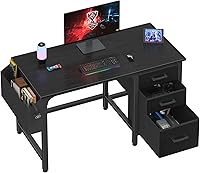
The PRAISUN is the smallest of these three desks at 47.2 x 19.7 in. Its 4 AC outlets, 1 USB port, and 1 USB-C port suit a modest device mix in a room where a deeper desk would take up too much space.
That shallow footprint may be limiting if you use a large monitor, keep papers open, or want room to write beside your keyboard. Compare your measurements with our guide to computer desk depth and width before settling on a compact surface.
Which port mix suits your devices?
Choose AC outlets for standard plugs and USB ports for compatible charging cables. A mix of both can reduce the number of adapters you need on the desktop.
The Huuger has 4 outlets, 2 USB ports, and 1 Type-C port, plus a 6.6 ft cord. Its 54 x 23.6 in desktop is a middle option for someone who wants more work area than the PRAISUN provides, without choosing the longest desk here.
Don't assume every USB connection will charge every device at the speed you expect. Check the device requirements and treat a built-in port as one part of the setup, not a reason to skip the charger or connection your equipment needs.
Plan cable runs before plugging everything in. The computer desk cable management guide covers ways to keep wires grouped and out of your main work area.
Where should the power unit and cables go?
Put frequently used connections where you can reach them without shifting your equipment. Leave the center of the work surface clear for the tasks you do most.
Think through where the monitor, lamp, laptop, and phone will sit. Keep charging cables short enough to avoid crossing the keyboard or mouse area, while leaving enough slack for normal movement.
The Huuger includes a cable management tray, which gives you a place to group cords below the surface. It doesn't remove the need to route each cable carefully, especially near the chair, legs, or any moving equipment.
The PRAISUN and Coleshome also have built-in charging ports, so decide where each desk will sit and how its cables will reach your devices. For more room to store supplies alongside cables, compare computer desks with storage.
When does a longer desk with outlets make sense?
A longer desktop helps when your setup needs space to spread out. It makes less sense if it crowds the room or leaves you with an awkward route to the wall outlet.
The Coleshome measures 70.9 x 23.6 in and has 3 AC outlets, 1 USB port, and 1 Type-C port. Its larger surface suits a wide workstation with several devices, provided you have enough room for the desk and a clear cable path.
A wide surface can spread devices farther apart, so check that their cables reach without crossing your main work area. If you need a broader comparison of large desks, see our large computer desk guide.
The Coleshome is a poor fit if you need to preserve floor space or have only a short route to a wall outlet that the desk's cord cannot cover. Measure both the desk location and the outlet route before committing to a long work surface.
How should you set up and care for the built-in power?
Set the desk near a suitable wall outlet, then route the cord where it stays clear and relaxed. Keep the cord away from chair wheels, doorways, and places where furniture can press on it.
During setup, arrange the desk before connecting all your devices. Check that the desk's power cord reaches without tension, then plug in equipment one at a time and give each cable a route that won't snag when you move your chair.
Keep drinks away from the power unit and connectors. When dusting, unplug devices as needed and use a dry cloth around the ports; don't push debris into openings or pull a plug out by its cable.
Avoid running cords under rugs or across a walking path. If the desk has to sit far from the wall outlet, reconsider its position or plan a safe cable route before using the setup.
What common mistakes should you avoid?
The main mistake is choosing by port count alone. A desk can have several connections and still be the wrong fit if the port types, cord reach, or surface dimensions don't match your room and equipment.
Don't buy before measuring the desk footprint and the outlet path. A room measurement that covers only the desktop width can miss the space needed for chair movement or a clean route to power.
Don't count every USB port as interchangeable. Check which connection your devices need, and leave room for any separate adapter or charger that your setup still requires.
Finally, avoid filling the surface before planning cable routes. Place the large equipment first, then set the power unit and cables so they don't cut through the space you use for typing, writing, or moving a mouse.
Which computer desk with outlets fits your setup?
Choose PRAISUN for a compact footprint, Huuger for a mixed charging setup with a cable tray, and Coleshome for a long desktop. The right choice depends on your usable room space, devices, and route to the wall outlet.
Pick PRAISUN if the 47.2 x 19.7 in surface fits your equipment and you want AC, USB, and USB-C connections. Choose Huuger if you want a 54 x 23.6 in work surface, more USB connections, and a 6.6 ft cord.
Choose Coleshome if you need a 70.9 x 23.6 in surface and have room to place it with a clear power route. For drawers alongside your charging setup, see computer desks with drawers; for open storage, compare computer desks with shelves.
Measure first, count your plugs, and plan the cable path. Those checks will tell you whether built-in outlets will simplify your desk or add connections you cannot use conveniently.
Frequently asked questions
Are built-in desk outlets worth it?
Built-in outlets are useful if you regularly charge devices at your desk and want ports close to the work surface. Check that the outlet types match your devices, the cord can reach your wall outlet, and the ports sit where you can use them without stretching cables across your work area.
Can a computer desk with outlets replace a power strip?
Not always. A desk's built-in outlets may cover a few devices, but you may still need a power strip for equipment that needs more outlets or a different setup.
Count the AC plugs and USB connections you use, then compare that total with the desk's available ports.
How long should the desk's power cord be?
Choose a cord long enough to reach your wall outlet along a clear route, with some slack for positioning the desk. Measure the path from the desk's power unit to the outlet before choosing, and avoid stretching the cord tightly or routing it where it can be pinched.
Do built-in USB ports charge every device?
USB ports can charge compatible devices, but the port type and device requirements matter. Check whether you need USB-A, USB-C, or both, and confirm that your device can use the available port.
A USB port alone doesn't tell you its charging speed.