Computer Desk Setup: Where Everything Goes
A useful computer desk setup puts your main screen in front, your keyboard and mouse within easy reach, and cables clear of your feet. Set the chair and screen first, then add accessories only to solve a specific fit or storage problem.
On this page (8 sections)
- Where should each item go in a computer desk setup?
- How high and how far away should the monitor be?
- How much desk depth do you need?
- Should you use a monitor riser or keep the screen on the desk?
- How should you arrange a laptop and external monitor?
- How do you keep desk cables out of the way?
- What common setup mistakes should you avoid?
- How do you choose the right computer desk setup?
A computer desk setup works best when the screen is centered, the keyboard and mouse are within easy reach, and the chair fits the desk. Adjust those basics first, then choose accessories to address a specific need.
Start with the equipment you use every day: screen, keyboard, mouse, and chair. Measure your desk and the equipment before adding a riser, monitor arm, or cable tray.
Where should each item go in a computer desk setup?
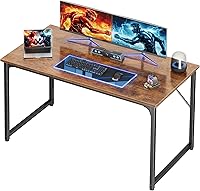
Put the screen in front of you, the keyboard below it, and the mouse beside the keyboard. Keep the center of the desk clear for typing and pointing, and move occasional supplies to the edges or into storage.
Sit in your normal working position before arranging anything. Center your body with the screen and main typing area, then move the chair close enough that you can sit upright without leaning toward the desk.
Set the keyboard and mouse so your shoulders stay relaxed and your elbows remain near your sides. If you use a separate number pad, place it beside the keyboard instead of letting it push your main typing area far off center.
A notebook, phone, or drink can sit to one side if it doesn't crowd your mouse space or block your view. Leave the area directly in front of you for the task you do most often.
How high and how far away should the monitor be?
Set the monitor about an arm's length away, with the top of the screen at or just below eye level as a starting point. Adjust it until you can read without leaning forward or tilting your head.
Screen size, vision, and seated posture affect the right distance. If you keep moving closer to read, check the text size and screen settings before pulling the monitor toward the desk edge.
A screen that sits too low can encourage you to look down for long periods. Raise it with a stable riser or adjustable arm, and make sure the support fits the monitor and desk.
For more detail on desk and screen fit, read how high a computer desk should be. The guide can help you check whether your desk height suits your seated position.
Can a monitor arm improve a computer desk setup?
A monitor arm suits you if you need to change screen height or angle, or want to clear the surface beneath the monitor. The ErGear Single Monitor Arm fits compatible 13–34 in screens up to 19.8 lb and adjusts up to 17.5 in in height.
Before choosing it, check your monitor's weight and VESA pattern, then measure the desk edge or grommet area. Clamp mounting fits desks 0.39–2.56 in thick, while the grommet base fits desks 0.39–2.95 in thick.
Skip a monitor arm if the screen already sits comfortably and its base doesn't crowd your work area. A fixed stand is simpler when you don't need frequent repositioning.
How much desk depth do you need?
Choose a desk deep enough to place the screen at a comfortable viewing distance while keeping the keyboard and mouse in front. Leave room behind the monitor for its base and cables, including any gap between the desk and wall.
A deep monitor base, large keyboard, or writing pad can quickly use up the front-to-back space. Measure the items you plan to keep on the desk, and compare them with the usable surface rather than the desk's outside dimensions.
A monitor arm or riser can change how much surface the screen uses, but it won't make a shallow desk deeper. See how deep and wide a computer desk should be before choosing a desk or adding accessories.
Should you use a monitor riser or keep the screen on the desk?
Choose a monitor riser if the screen needs height and you want a small storage area beneath it. The OPNICE riser has 2 tiers, a drawer, and 2 hanging pen holders, with a footprint of 20.5 x 9.5 in.
Measure the riser against your usable desk depth and the monitor's base. Its 6.3 in height may not suit every screen and seated position, so check the final viewing height before settling on it.
Skip the riser if you need the full desk surface for large papers, a wide keyboard, or broad mouse movement. It also adds a fixed platform, so it won't suit a setup where you often change screen height or position.
Keep supplies beneath the riser limited to items you use regularly. If you fill every available space with small objects, the extra storage can make it harder to keep the work area clear.
How should you arrange a laptop and external monitor?
Put the external monitor in front of you if it is your main screen, and place the laptop to the side as a secondary screen. If you type on the laptop, center it and set the external screen beside it at a similar viewing distance.
A laptop used as your only screen may sit too low for comfortable viewing. Raising it can help with screen placement, but a separate keyboard and mouse let you keep your hands lower.
Keep the laptop's openings clear, and don't stack items where they could slide. Follow the device's own placement guidance for ventilation.
How do you keep desk cables out of the way?
Route power and data cables along the desk and down one path toward an outlet, away from your legs and chair wheels. Leave enough slack for screen or desk movement, without letting cords hang loose across the floor.
Group cables by device before fastening or placing them in a tray. Keep plugs accessible, and avoid covering power equipment in a way that blocks ventilation.
The Univivi 32 in Under-Desk Cable Tray is for setups with several cords or a power strip that need a shared place beneath the desk. It supports clamp or screw mounting, and needs at least 2.36 in of flat underside space.
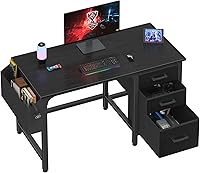
Measure around desk legs, support rails, and drawers before choosing a tray. A tray that conflicts with a crossbar or drawer won't fit where you need it.
Use clamp mounting when you want to avoid screw holes and the desk edge allows a secure fit. Choose screws when a firmer attachment suits the desk, and check that the tray won't block legroom or an outlet.
For a step-by-step cable plan, see how to hide the cables on a computer desk. Route cables only after placing your equipment, so you don't need to redo the path when you move a screen or power strip.
What common setup mistakes should you avoid?
Avoid choosing accessories before measuring the desk and equipment. A riser can take up needed depth, an arm may not fit the desk edge, and a tray can conflict with rails or drawers.
Another common mistake is placing the keyboard and mouse too far forward. That can draw your shoulders toward the desk; move them closer and check that your chair can approach without hitting a drawer or support.
Don't route cables tightly just to make them look neat. Leave enough slack for normal movement, keep cords out of the chair's path, and make plugs easy to reach.
Finally, don't add storage just because space is available. Every item on the desk should support a task or be easy to put away.
How do you choose the right computer desk setup?
Choose the simplest computer desk setup that solves your fit and organization needs. Pick a monitor arm if you need flexible screen positioning, a riser if you want a fixed lift with small-item storage, and a cable tray if cords or a power strip clutter the area below.
Choose none of these accessories if your screen is comfortable, the work surface stays open, and cables stay clear of your feet. Measure first, then add only what your setup needs.
If the desk itself is too small or lacks the right layout, use this computer workstation desk buying guide to compare desk styles and features.
Frequently asked questions
Where should a monitor go on a computer desk?
Place the monitor directly in front of you, about an arm's length away as a starting point. Set the top of the screen at or just below eye level, then adjust until you can read without leaning forward or tilting your head.
Screen size, vision, and posture can change the comfortable distance.
Where should a keyboard and mouse go?
Put the keyboard in front of you and the mouse beside it, close enough to use without reaching. Keep your shoulders relaxed and elbows near your sides.
If you use a separate number pad, place it on the side that leaves your main typing area centered.
How do I keep computer desk cables organized?
Group cables by device and route them toward a power source without pulling them tight. Keep cords away from your feet and chair wheels, and leave enough slack for adjustable equipment to move.
An under-desk tray can hold a power strip and loose cables if it fits your desk.
Should a computer desk setup include a monitor riser?
A monitor riser can help if your screen sits too low and you want storage beneath it. Check its footprint against your desk depth and leave enough space for the keyboard and mouse.
A monitor arm is another option when you want to adjust the screen or free more work surface.